
In 2026, IPTV has become one of the most popular ways to watch live TV, sports, movies, and TV series on Smart TVs such as Samsung, LG, Sony, Hisense, and TCL.
With thousands of channels and massive VOD libraries available, IPTV offers far more flexibility than traditional cable TV.
However, with many IPTV apps on the market and different playlist formats like M3U and Xtream Codes, setting up IPTV on a Smart TV can feel confusing—especially for beginners.
This expert guide explains how to set up IPTV on Smart TV step by step using IBO Player Pro, one of the most reliable IPTV players available in 2026.
You’ll learn how to install the app, activate it correctly, upload your IPTV playlist, and optimize performance to enjoy smooth, buffer-free streaming on any compatible Smart TV.
What You Need Before Setting Up IPTV on Your Smart TV
Before starting the installation, make sure you have everything ready to avoid setup errors or playback issues.
You will need:
A Smart TV (Samsung, LG, Sony, Android TV, Hisense, or TCL)
A stable internet connection (minimum 10 Mbps, 25 Mbps recommended for 4K)
An active IPTV subscription (FluxPlay.TV recommended)
IBO Player Pro installed on your Smart TV
An M3U URL or Xtream Codes from your IPTV provider
💡 Pro Tip: A reliable IPTV provider plays a major role in preventing buffering and freezing issues.
Why IBO Player Pro Is the Best IPTV App for Smart TVs in 2026
IBO Player Pro has become one of the most trusted IPTV applications for Smart TVs thanks to its stability, performance, and ease of use.
1. Fast & Smooth Interface
A clean, lag-free interface that runs smoothly even on older Smart TVs.
2. Supports M3U & Xtream Codes
No compatibility problems—works with almost all IPTV providers.
3. Works on All Smart TV Brands
IBO Player Pro is compatible with:
Samsung Tizen
LG WebOS
Sony Android TV
Hisense
TCL
All Android TV models
4. Stable Playback
Perfect for watching live sports, 4K movies, and live events without buffering.
5. One-Time Activation
You activate the app only once through the official website—no recurring fees.
How to Set Up IPTV on Smart TV Using IBO Player Pro (Step-by-Step)
Setting up IPTV may seem technical at first, but with IBO Player Pro, the process is simple and beginner-friendly.
Follow the steps below carefully.
How to Install IBO Player Pro on Your Smart TV
Step 1: Open Your Smart TV App Store
Samsung → Samsung Apps Store
LG → LG Content Store
Sony / Android TV → Google Play Store
Step 2: Search for “IBO Player
Type IBO Player Pro into the search bar.
The app will appear instantly.
Step 3: Download and Install
Click Install and wait for the installation to complete.
Step 4: Open the App
After opening the app, you will see:
Device ID
Device Key
📌 Keep these details safe—you’ll need them to activate IPTV.
Optional: Let FluxPlay.TV Activate Your IBO Player Automatically
If you don’t want to manually upload your playlist on the IBO Player website,
FluxPlay.TV can handle the entire activation process for you.
You only need to provide:
Device ID
Device Key
Once FluxPlay.TV receives these two codes, they will:
✔ Activate your IBO Player Pro
✔ Upload your playlist (M3U / Xtream Codes)
✔ Sync your account
✔ Ensure everything is working before you start watching
🔥 This option is faster, easier, and perfect for beginners.
How to Set Up IPTV on IBO Player Pro (Step-by-Step Guide)
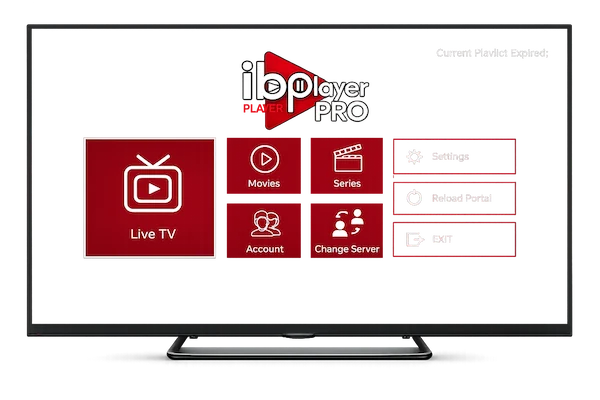
Step 1: Open IBO Player Pro
Your Device ID and Device Key will be displayed on the screen.
Step 2: Go to the IBO Player Activation Website
From your phone or computer, visit:
👉 https://iboplayer.pro
Enter:
Device ID
Device Key
Then click Upload Playlist.
Step 3: Upload Your IPTV Playlist (M3U or Xtream Codes)
You can add:
M3U URL
orXtream Codes (Username / Password / Server URL)
You receive these details from your IPTV provider (FluxPlay.TV recommended).
Step 4: Restart IBO Player Pro & Reload Playlist
Go back to your TV → restart the app → the channels will load automatically.
You will now see:
Live TV Channels
Movies (VOD)
Series (TV Shows)
🎉 Congratulations! IPTV is now fully set up on your Smart TV.
Troubleshooting: Fix IPTV Issues on Smart TV
1. Channels Not Loading
Refresh the playlist
Check the M3U URL
Restart your TV
2. IPTV Freezing or Buffering
Use a 5 GHz Wi-Fi connection
Move the router closer
For best results, use an Ethernet cable
3. “Invalid M3U URL” Error
Ensure the link is copied correctly
Verify that your IPTV subscription is active
Best IPTV Provider for Smart TVs in 2026
Your IPTV provider is the most important factor in your streaming experience.
🥇 FluxPlay.TV — Best IPTV for Smart TVs (2026)
- ✔ Ultra-stable connections
- ✔ 4K / Full HD quality
- ✔ 40,000+ live channels
- ✔ Massive VOD library
- ✔ No freezing
- ✔ 24/7 support
- ✔ Fully compatible with IBO Player Pro
Frequently Asked Questions (FAQ)
Is IPTV safe to use on Smart TVs ?
Yes, it is safe to set up IPTV on Smart TV as long as you use a trusted IPTV provider and a secure app like IBO Player Pro.
Do I need to activate IBO Player Pro ?
Yes, activation is required once through the official website.
Can I use my M3U playlist on Samsung Smart TV ?
Absolutely — IBO Player Pro supports M3U playlists perfectly.
Why isn’t IPTV working on my Smart TV ?
Common causes:Weak internet connectionWrong playlist formatProvider server issues
Final Thoughts on Setting Up IPTV on Smart TV
Now you know exactly how to set up IPTV on Smart TV in 2026 using IBO Player Pro, from installation and activation to playlist upload and performance optimization.
By following this step-by-step guide, you can enjoy live TV, sports, movies, and series in HD and 4K quality with minimal buffering.
For the best IPTV experience, always choose a reliable IPTV provider and a stable internet connection.