
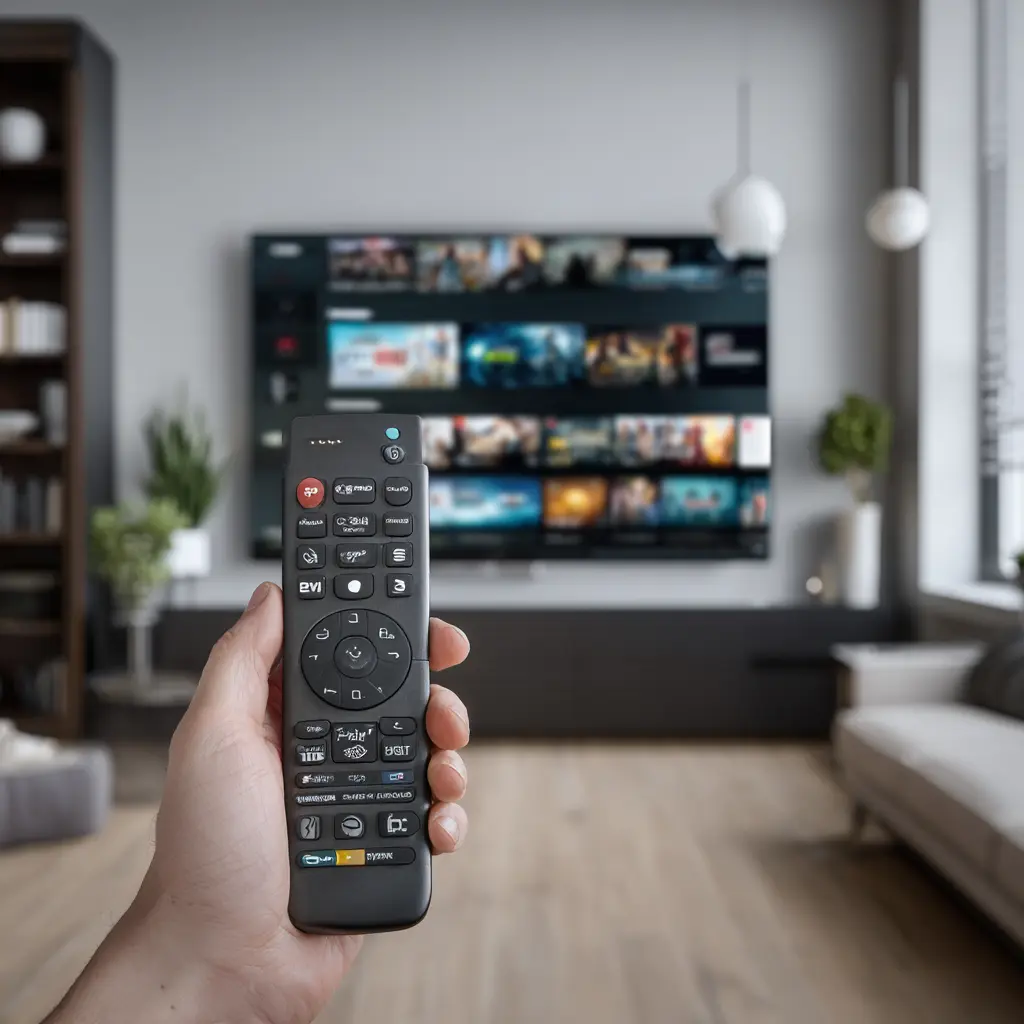
How to Set Up IPTV on Smart TV (2026 Guide Using IBO Player Pro)
In 2026, IPTV has become the most popular way to watch live TV, sports, movies, and series on Smart TVs such as Samsung, LG, Sony, Hisense, and TCL.
However, with dozens of IPTV apps and playlist formats like M3U and Xtream Codes, many users struggle to set up IPTV on their Smart TVs correctly.
In this expert guide, you’ll learn step-by-step how to install and set up IPTV on any Smart TV using IBO Player Pro, along with tips to optimize performance, avoid freezing, and choose a reliable IPTV provider.
What You Need Before Setting Up IPTV on Your Smart TV
Before you begin, make sure you have:
✔ A Smart TV (Samsung – LG – Sony – Android TV – Hisense – TCL)
✔ A stable internet connection (minimum 10 Mbps — 25 Mbps for 4K)
✔ An active IPTV subscription (recommended: FluxPlay.TV)
✔ IBO Player Pro installed on your Smart TV
✔ M3U URL or Xtream Codes from your IPTV provider
💡 Pro Tip: A strong IPTV provider = smoother streaming and no freezing.
Why IBO Player Pro Is the Best IPTV App for Smart TVs in 2026
IBO Player Pro is one of the highest-rated IPTV apps in 2026 thanks to:
1. Fast & Smooth Interface
A clean, lag-free interface that works perfectly even on older Smart TVs.
2. Supports M3U & Xtream Codes
No compatibility issues — works with all IPTV providers.
3. Works on All Smart TV Brands
Compatible with:
Samsung Tizen
LG WebOS
Sony Android TV
Hisense
TCL
All Android TV models
4. Stable Playback
Ideal for watching sports, 4K movies, and live events without buffering.
5. One-Time Activation
You only activate it once through the official website.
How to Install IBO Player Pro on Your Smart TV
Step 1: Open Your Smart TV App Store
Samsung → Samsung Apps Store
LG → LG Content Store
Sony / Android TV → Google Play Store
Step 2: Search for “IBO Player
Type IBO Player Pro into the search bar.
The app will appear instantly.
Step 3: Download and Install
Click Install and wait for the installation to complete.
Step 4: Open the App
Once installed, open the app — you will see:
Device ID
Device Key
Keep them safe — you will use them to upload your IPTV playlist.
Optional: Let FluxPlay.TV Activate Your IBO Player Automatically
If you don’t want to manually upload your playlist on the IBO Player website,
FluxPlay.TV can handle the entire activation process for you.
You only need to provide:
Device ID
Device Key
Once FluxPlay.TV receives these two codes, they will:
✔ Activate your IBO Player Pro
✔ Upload your playlist (M3U / Xtream Codes)
✔ Sync your account
✔ Ensure everything is working before you start watching
🔥 This option is faster, easier, and perfect for beginners.
How to Set Up IPTV on IBO Player Pro (Step-by-Step Guide)
Step 1: Open IBO Player Pro
The app will display your Device ID and Device Key.
Step 2: Go to the IBO Player Activation Website
From your phone or computer, visit:
👉 https://iboplayer.pro
Enter:
Device ID
Device Key
Then click Upload Playlist.
Step 3: Upload Your IPTV Playlist (M3U or Xtream Codes)
You can add:
M3U URL
orXtream Codes (Username / Password / Server URL)
You receive these details from your IPTV provider (FluxPlay.TV recommended).
Step 4: Restart IBO Player Pro & Reload Playlist
Go back to your TV → restart the app → the channels will load automatically.
You will now see:
Live TV Channels
Movies (VOD)
Series (TV Shows)
🎉 Congratulations! IPTV is now fully set up on your Smart TV.
Troubleshooting: Fix IPTV Issues on Smart TV
1. Channels Not Loading
✔ Refresh the playlist
✔ Check the M3U link
✔ Restart your TV
2. IPTV Freezing or Buffering
✔ Use a 5 GHz WiFi network
✔ Move the router closer
✔ For best performance: Use an Ethernet cable
3. “Invalid M3U URL” Error
✔ Make sure the URL is copied correctly
✔ Ensure your provider subscription is active
Best IPTV Provider for Smart TVs in 2026
Your IPTV provider is the most important factor in your streaming experience.
🥇 FluxPlay.TV — Best IPTV for Smart TVs (2026)
✔ Ultra-stable connections
✔ 4K / Full HD quality
✔ 40,000+ live channels
✔ Massive VOD library
✔ No freezing
✔ 24/7 support
✔ Fully compatible with IBO Player Pro
Frequently Asked Questions (FAQ)
Is IPTV safe to use on Smart TVs ?
Yes — as long as you’re using a reliable provider and secure apps.
Do I need to activate IBO Player Pro ?
Yes, activation is required once through the official website.
Can I use my M3U playlist on Samsung Smart TV ?
Absolutely — IBO Player Pro supports M3U playlists perfectly.
Why isn’t IPTV working on my Smart TV ?
Common causes:Weak internet connectionWrong playlist formatProvider server issues
Conclusion
Setting up IPTV on your Smart TV in 2026 is easier than ever — especially using IBO Player Pro.
Just follow the steps above, and you’ll enjoy smooth 4K streaming with zero buffering.
🔥 For the best streaming performance:
👉 Try FluxPlay.TV — 24H Free Trial